

How to Fix Elementor Error #5305: Complete Troubleshooting Guide
You open the Elementor editor, ready to make a quick change to your page, and instead you’re staring at Error #5305. Nothing loads. Nothing works. And the error message itself tells you almost nothing useful. If that sounds familiar, you’re in the right place. This guide will walk you through exactly what’s happening, why it’s happening, and how to get your editor working again.
What is Elementor Error #5305?
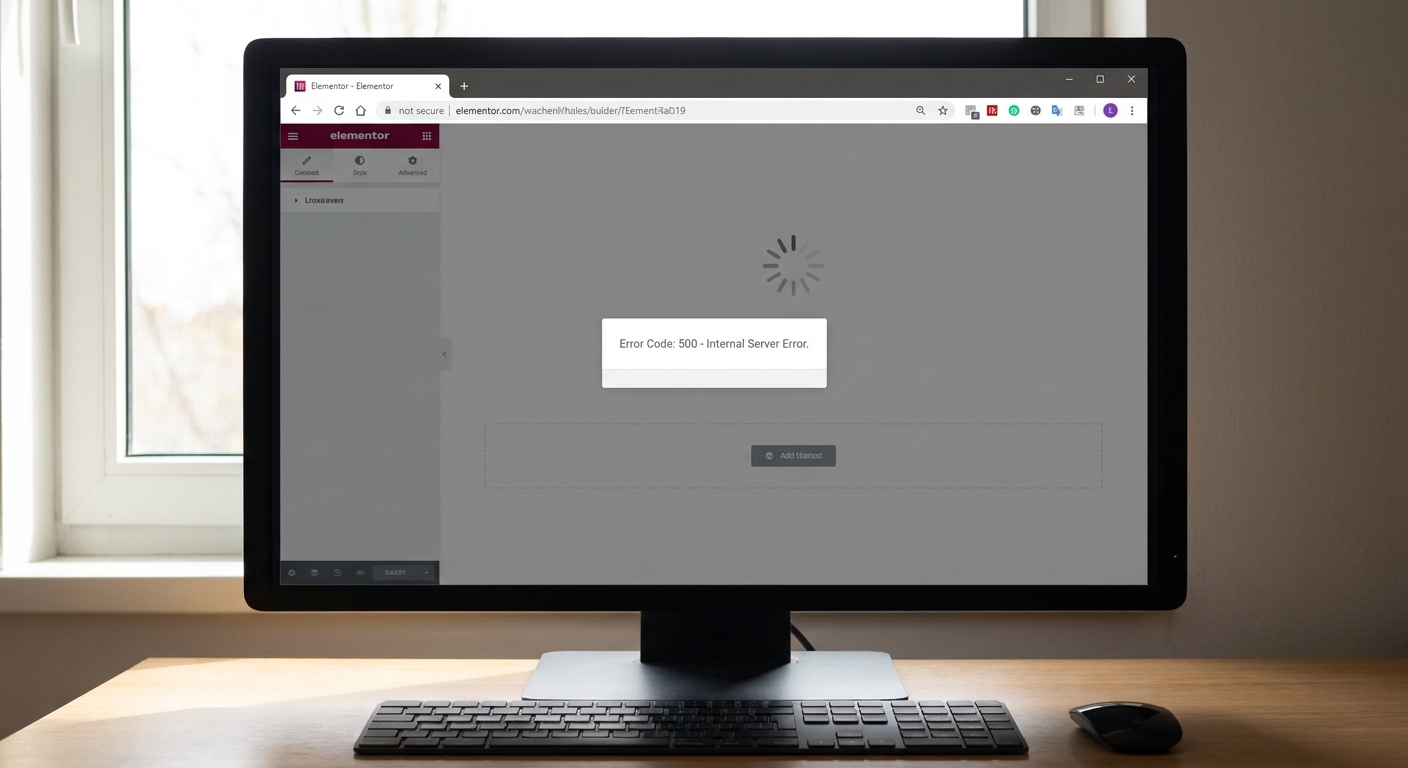
Elementor Error #5305 is a client-side JavaScript error that occurs when the Elementor page builder fails to load its editor scripts properly. Rather than displaying your editable page, the editor gets stuck, showing a blank screen, a loading spinner that never finishes, or the error code itself.
The error falls into a broader category of Elementor initialisation failures. What makes #5305 distinct is that it typically points to a script dependency problem: something on your WordPress site is either blocking, conflicting with, or corrupting the JavaScript files that Elementor needs to boot up its editor interface.
It can appear on both the free and Pro versions of Elementor, and it’s not tied to any single WordPress theme. That said, certain hosting environments and plugin combinations do make it more likely.
Common Causes of Elementor Error #5305
Before you start fixing things, it helps to understand what usually triggers this error. The cause shapes the solution, and working through this list in order will save you time.
Plugin conflicts
This is the most frequent culprit. Another plugin on your site, often a caching tool, a security tool, or a JavaScript optimiser, interferes with the scripts Elementor tries to load. The ones that minify or concatenate JavaScript are particularly likely to cause this.
Aggressive caching
If your site caches JavaScript files and a recent Elementor update changed those files, your browser or server cache may still be serving the old versions. Elementor then can’t find the scripts it expects, and Error #5305 appears.
Server-side restrictions
Some hosting configurations, particularly those with strict PHP memory limits, short execution time limits, or aggressive firewall rules, can interrupt the loading of Elementor’s editor assets before they finish.
Corrupted Elementor installation
A failed update or an incomplete file transfer can leave Elementor’s core files in a broken state. The editor tries to call a script file that either doesn’t exist or is partially written.
Theme conflicts
Less common, but some themes load their own JavaScript libraries that clash with Elementor’s dependencies, particularly older themes that still load jQuery in ways that conflict with how WordPress handles it now.
Step-by-Step Fixes for Elementor Error #5305
Work through these in order. Each step rules out one cause and moves you closer to a working editor. Most users resolve the issue within the first three steps.
Step 1: Clear all caches
Start here, always. Clear your browser cache with a hard refresh (Ctrl+Shift+R on Windows, Cmd+Shift+R on Mac). Then go into your caching plugin, whether that’s W3 Total Cache, WP Rocket, LiteSpeed Cache or something else, and purge everything. If your hosting provider offers a server-level cache (many managed WordPress hosts do), clear that too. Then try reopening the Elementor editor.
Step 2: Deactivate your caching and optimisation plugins
Still stuck? Temporarily switch off anything that touches JavaScript: caching plugins, minification tools, CDN integrations. Go to Plugins > Installed Plugins, deactivate them one at a time, and test the editor after each. When the error disappears, you’ve found your conflict.
Step 3: Switch to a default WordPress theme
Switch temporarily to Twenty Twenty-Four or another default WordPress theme. If Elementor loads correctly, your active theme is contributing to the problem. Contact the theme developer or look for a theme update that addresses JavaScript conflicts.
Step 4: Increase PHP memory limit
Add the following line to your wp-config.php file, just above the line that reads /* That's all, stop editing! */:
define('WP_MEMORY_LIMIT', '512M');Save the file and try the editor again. Elementor recommends a minimum of 256MB, and many sites with complex pages benefit from 512MB or more.
Step 5: Regenerate Elementor’s CSS files
In your WordPress dashboard, go to Elementor > Tools > Regenerate Files & Data and run the process. This forces Elementor to rebuild its generated CSS and clears any corrupted file references.
Step 6: Reinstall Elementor
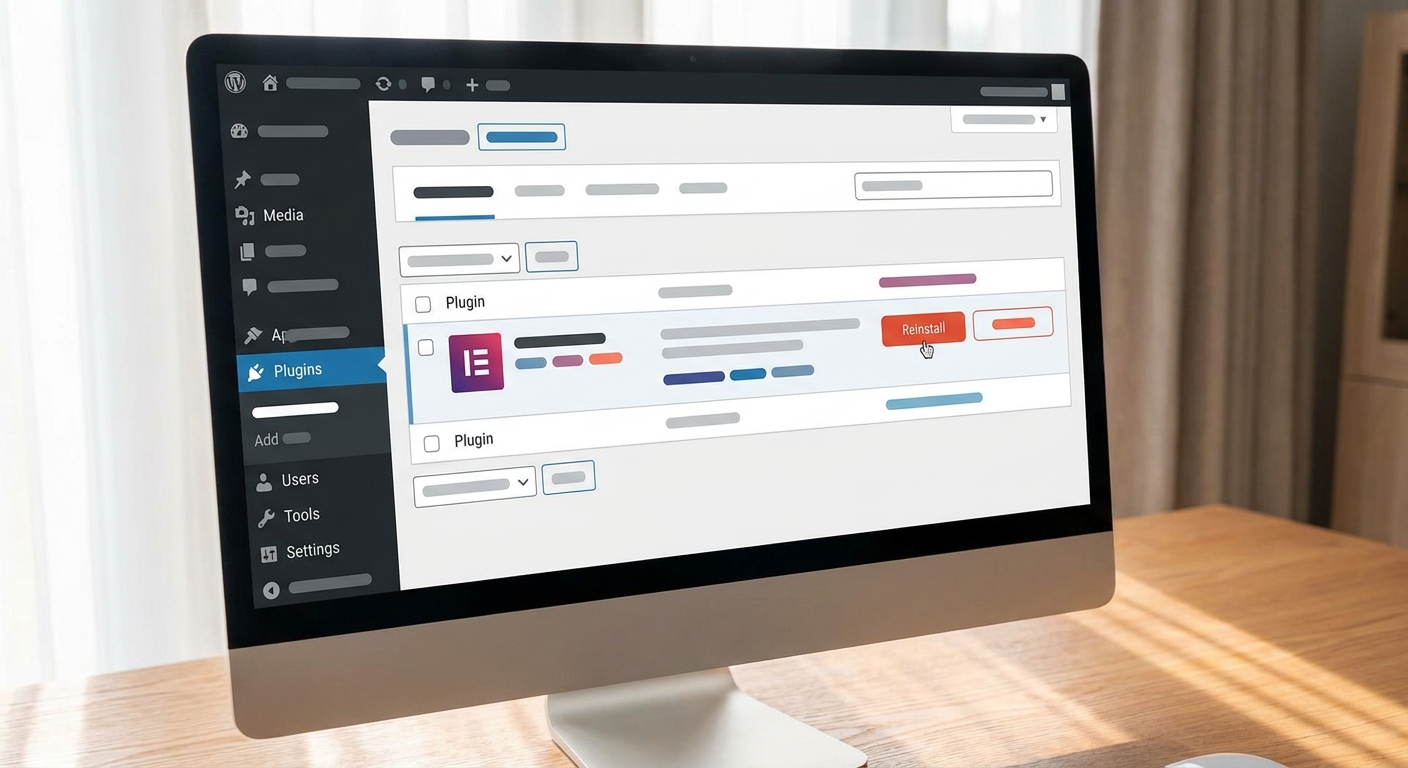
If none of that works, the Elementor files themselves may be corrupted. Deactivate and delete the plugin. Then reinstall it fresh from the WordPress plugin repository. Your page designs live in the database, so this won’t delete any of your content.
Advanced Troubleshooting Techniques
Enable Elementor’s debug mode
Add define('WP_DEBUG', true); to your wp-config.php file and check your browser’s developer console (F12 > Console tab) while loading the Elementor editor. The log will usually point to the specific script that’s failing to load, which narrows the cause significantly.
Check for JavaScript errors in the browser console
Open the editor, open your browser’s developer tools, and look at the Console tab before anything else loads. A failed network request to one of Elementor’s script files will show up in red with the file path attached. This tells you whether the issue is a missing file, a blocked request, or a script conflict.
Test with a staging environment
If you have access to a staging site, replicate the issue there. This lets you experiment freely without risking your live site, and it makes it much easier to test plugin deactivation and PHP configuration changes.
Contact your host about server configuration
If you’ve ruled out plugins, themes and caching, speak to your hosting support team. Ask them specifically about PHP execution time limits, memory limits, and whether any firewall rule might be blocking requests to /wp-content/plugins/elementor/. Many hosts can check their logs and identify blocked requests immediately.
Interactive Troubleshooting Flowchart
Use this decision tree to find your fix quickly. Begin with the first question and follow the path that matches your situation.
Start: Elementor Error #5305 is showing
- Did you recently update Elementor or a plugin?
- Yes → Clear all caches, then regenerate Elementor CSS files
- No → Continue below
- Do you have a caching or JS optimisation plugin active?
- Yes → Deactivate it and test the editor immediately
- No → Continue below
- Does the error still appear with a default WordPress theme?
- No → Your theme is the conflict. Update or replace it
- Yes → Continue below
- Is the browser console showing a failed script request?
- Yes → Reinstall Elementor to restore missing files
- No → Contact your host about server-level restrictions
Preventing Elementor Error #5305 in the Future
Once you’ve fixed the error, a few habits will make it much less likely to return.
Always clear your cache after updating Elementor or any plugin that touches your site’s front end. Most caching plugins have an option to do this automatically on plugin updates. Enable it if yours does.
Keep a staging environment. It takes an afternoon to set up and saves hours every time you need to test an update or a new plugin combination. Most managed WordPress hosts include staging as standard now.
Be selective about JavaScript optimisation plugins. Tools that minify or defer JavaScript are genuinely useful for performance, but they need careful configuration around Elementor’s scripts. Exclude Elementor’s files from minification if you’re getting repeated conflicts.
Monitor your PHP memory usage. If your site is growing (more pages, more plugins, heavier designs), check your memory limit periodically. Running close to the limit makes your site fragile, and Elementor is often the first thing to break when memory runs out.
How Elementor Error #5305 Compares to Similar Elementor Errors
Not every Elementor error is the same problem wearing a different number. Here’s how #5305 sits relative to the errors you’re most likely to encounter alongside it.
| Error | Primary Cause | Where it Shows | First Fix to Try |
|---|---|---|---|
| #5305 | JavaScript loading failure | Editor only | Clear cache, deactivate JS optimisation plugins |
| #5306 | REST API access blocked | Editor only | Check .htaccess and security plugin settings |
| #4006 | Font loading failure | Front end and editor | Disable Google Fonts in Elementor settings |
| White screen / blank editor | PHP memory exhaustion | Editor only | Increase WP_MEMORY_LIMIT in wp-config.php |
The key distinction with #5305 is that it’s specifically a JavaScript problem, not a server response problem or a PHP crash. That matters because it points you toward the browser and script loading rather than server logs and PHP configuration, though server configuration can still play a role indirectly.
Mobile-Specific Troubleshooting for Error #5305
If Error #5305 shows up only on mobile devices, or the editor behaves differently on a phone, there are a few extra things worth checking.
Elementor builds its editor for desktop use. So if you’re trying to edit on a tablet or phone, that’s the most likely cause right there. Elementor doesn’t officially support mobile editing, and many of the interface scripts simply don’t load correctly on handheld browsers.
If the error is appearing on the front end of your site on mobile (rather than in the editor), that’s a different scenario. Check whether your CDN or caching setup is serving different assets to mobile users. Some performance configurations serve a stripped-down version of the page to small-screen visitors, which can exclude scripts that your Elementor-built pages depend on.
Also check your mobile breakpoint settings in Elementor. A corrupted breakpoint configuration can occasionally cause script errors on specific viewport sizes. Go to Elementor > Settings > Style and verify your breakpoint values are sensible.
Key Takeaways
- Elementor Error #5305 is a JavaScript initialisation failure. The editor can’t load the scripts it needs.
- The most common causes are plugin conflicts (especially caching and JS optimisation plugins), aggressive caching, and insufficient PHP memory.
- Clear your cache first, then deactivate plugins one by one, then check PHP memory. This order resolves the issue for most users.
- Use your browser’s developer console to identify the specific script that’s failing, which speeds up diagnosis considerably.
- Keeping a staging environment and being selective about JS optimisation plugins are the two most effective prevention habits.
Frequently Asked Questions about Elementor Error #5305
Will fixing Error #5305 delete my Elementor page designs?
No. WordPress keeps your page designs in its database, not in the plugin files. Reinstalling Elementor, clearing the cache, or changing PHP settings won’t touch your content. That said, it’s always a good idea to have a recent backup before making configuration changes.
Can Error #5305 appear after a WordPress update?
Yes, and it’s more common than you’d expect. Core updates occasionally change how scripts are loaded or introduce compatibility changes that affect Elementor. If the error appeared immediately after an update, try clearing all caches first, then check for an Elementor release that addresses the new version.
Does this error affect my live site visitors?
Usually not. Error #5305 is almost always confined to the Elementor editor, the backend interface you use to build pages. Your published pages are typically served from static HTML or cached files and don’t depend on the editor scripts running correctly. Your visitors most likely see your site working normally even while you’re experiencing the error.
How long does it usually take to fix Elementor Error #5305?
For most users, clearing the cache resolves it in under five minutes. If the cause is a plugin conflict, finding the offender through step-by-step deactivation typically takes 15 to 30 minutes depending on how many plugins are active. Server configuration issues that require hosting support involvement can take longer, but those are relatively rare.
Should I report Elementor Error #5305 to Elementor support?
If you’ve worked through all the steps in this guide and the error persists, yes, open a support ticket with Elementor (or post in their community forum if you’re on the free plan). Include your WordPress version, your Elementor version, your active plugin list, your PHP version, and anything you’ve found in your browser console. The more detail you provide, the faster they can help.
Error #5305 is frustrating precisely because it blocks you from doing the work you’re there to do. But it’s also one of the more predictable Elementor errors: the causes are well-understood and the fixes are reliable. Once you’ve resolved it, take ten minutes to review your plugin stack and caching configuration. That audit will tell you a lot about how stable your site is more broadly, not just whether Elementor will load tomorrow.