

How to Fix Elementor Error #5305: Complete Troubleshooting Guide
You open Elementor, ready to work, and instead of your page editor you get an error. Specifically, Elementor error #5305. No explanation, no obvious fix, just a broken workflow and a deadline that hasn’t moved. If that sounds familiar, you’re in the right place. This guide walks you through exactly what’s causing it and how to get your editor working again.
What Is Elementor Error #5305?
Elementor error #5305 is a client-side JavaScript error. When Elementor loads the page builder, it depends on a sequence of scripts initialising in the correct order. If any one of those fails to load, because it’s blocked, corrupted, or conflicting with another plugin, the editor throws error #5305 and stops loading entirely.
The error itself doesn’t point to a single broken file. It’s more of a catch-all signal that something in the editor’s initialisation sequence broke down. That’s what makes it frustrating: the problem could be sitting in several different places.
Elementor Editor
The visual, drag-and-drop interface used to build pages in WordPress using Elementor. It runs as a separate JavaScript application loaded inside your browser.
JavaScript Initialisation Error
An error that occurs when a JavaScript file or function fails to run at the expected point during page load, preventing dependent features from working.
Plugin Conflict
When two or more WordPress plugins load scripts or styles that interfere with each other, causing one or both to malfunction.
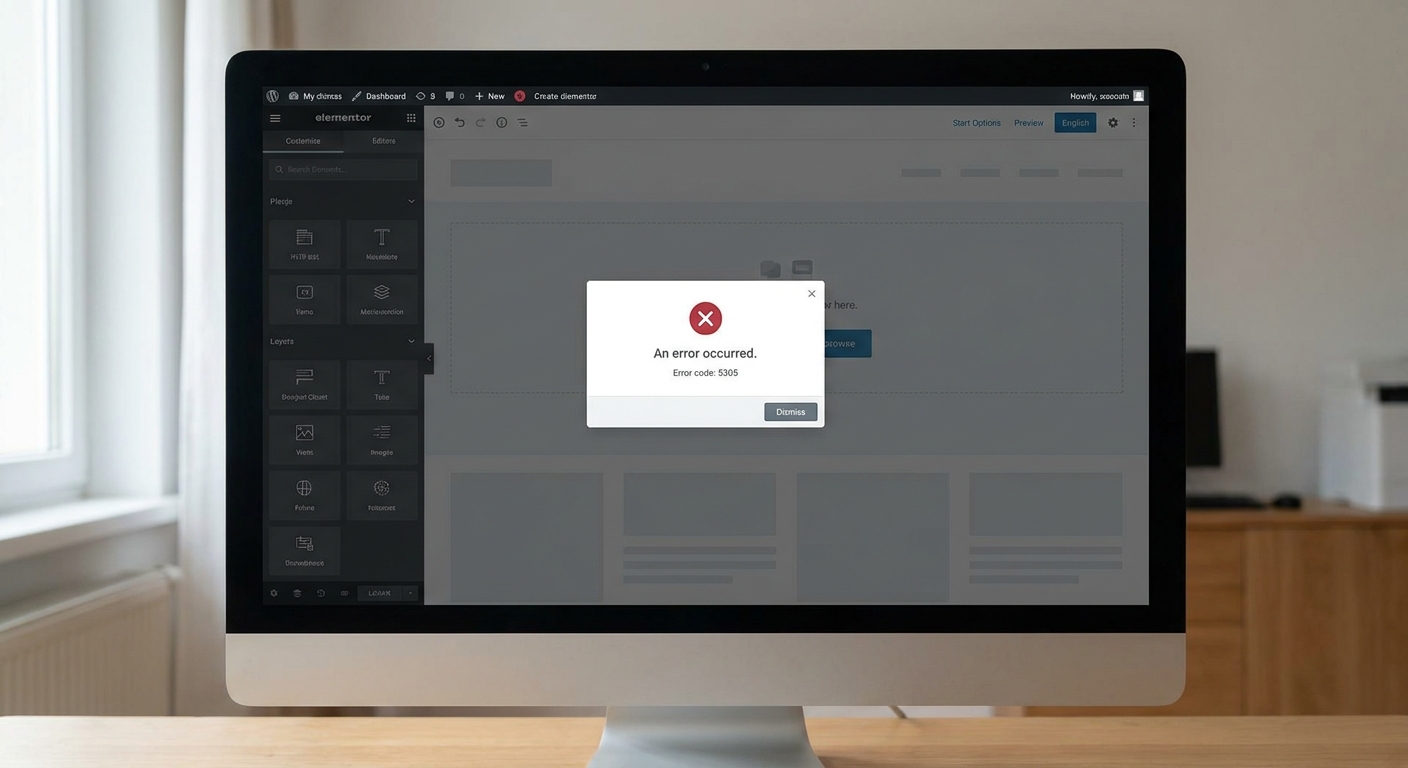
Common Causes of Error 5305
Before you start troubleshooting, it helps to know what you’re actually looking for. These are the situations that trigger error #5305 most reliably.
- Outdated Elementor or Elementor Pro: Running mismatched versions, for example Elementor 3.x with an older Elementor Pro, regularly causes initialisation failures.
- Plugin conflict: A newly installed or updated plugin that also loads JavaScript on the editor page can interfere with Elementor’s scripts.
- Corrupted Elementor files: A failed update can leave Elementor’s core files in a broken state. The plugin appears active, but key scripts are missing or corrupted.
- Cached scripts: Your browser or a caching plugin may be serving an old copy of Elementor’s JavaScript files after an update, causing a version mismatch.
- Server-side script blocking: Some hosting configurations, firewalls, or security plugins block certain JavaScript requests, preventing Elementor from loading its required assets.
- PHP memory limit: If your server’s PHP memory limit is too low, Elementor may fail to generate or serve its scripts correctly.
Step-by-Step Fixes for Elementor Error 5305
Work through these in order. Most people find their fix within the first three steps.
Step 1: Clear All Caches
Start here. Clear your browser cache, clear any WordPress caching plugin you’re running (WP Rocket, W3 Total Cache, LiteSpeed Cache), and if you have a CDN like Cloudflare, purge that too. Then reload the Elementor editor. Cached JavaScript files are responsible for error #5305 more often than most people expect.
Step 2: Update Elementor and Elementor Pro
Go to Plugins → Installed Plugins. Check whether Elementor and Elementor Pro both show available updates. If they do, run them, and make sure you do both at once. A version mismatch between the free and Pro versions is a known trigger for this error.
Step 3: Deactivate and Reactivate Elementor
Deactivate Elementor from your plugins list, then reactivate it. This forces WordPress to reload all of Elementor’s files fresh and can clear minor file corruption issues without requiring a full reinstall.
Step 4: Run the Plugin Conflict Test
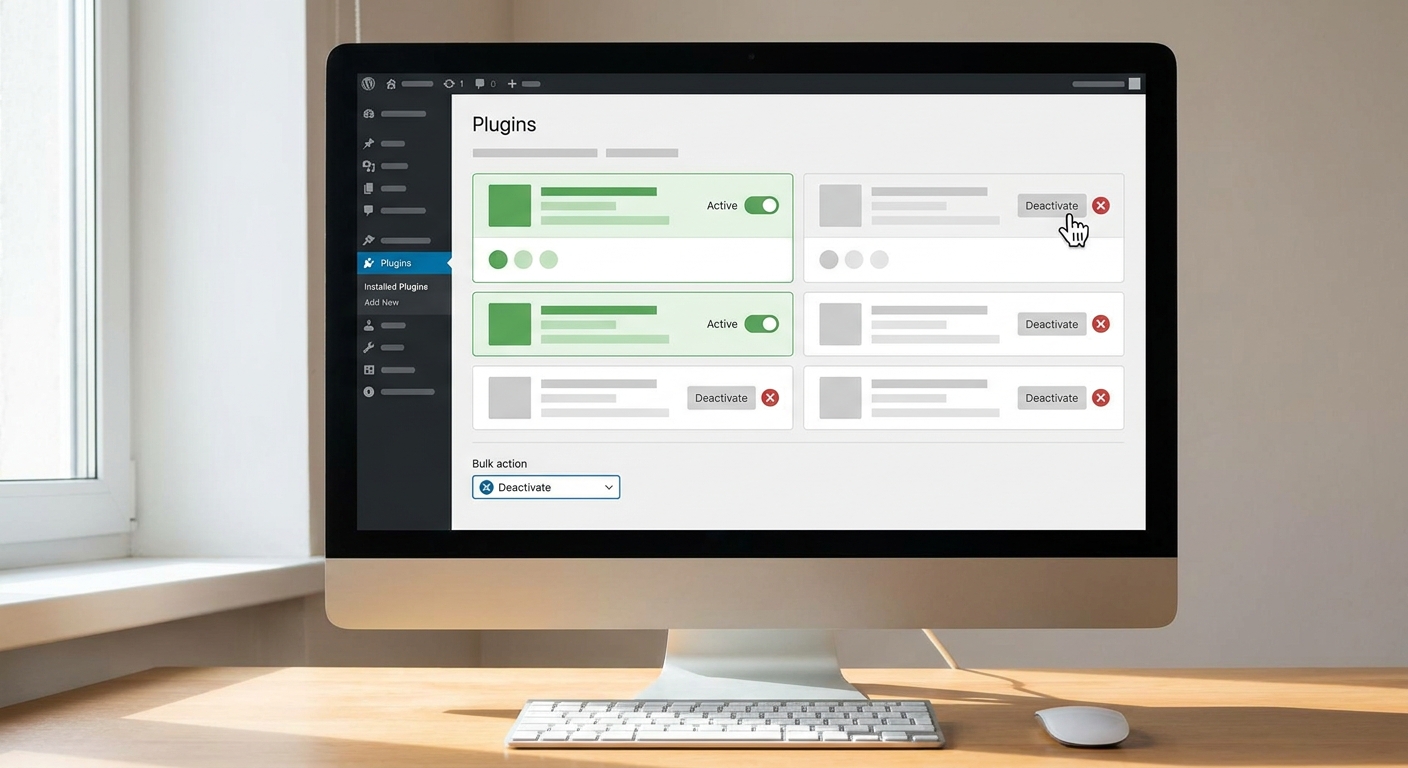
Deactivate all plugins except Elementor. Then open the editor and check whether error #5305 still appears. If it’s gone, you have a conflict. Reactivate your other plugins one at a time, testing the editor after each activation, until the error returns. The last one you activated is your culprit.
Step 5: Reinstall Elementor
If the error survives the conflict test, deactivate and delete Elementor (your content lives separately in the database, so you won’t lose it), then reinstall it fresh from the WordPress plugin repository. This replaces any corrupted files cleanly.
Step 6: Increase Your PHP Memory Limit
In your wp-config.php file, add or update this line:
define('WP_MEMORY_LIMIT', '256M');Elementor recommends a minimum of 256MB. Not comfortable editing configuration files directly? Contact your hosting provider and ask them to raise the limit for you, then confirm it took effect in Elementor’s System Info screen.
Step 7: Check Your Security Plugin Settings
If you’re running a security plugin such as Wordfence or Sucuri, temporarily disable it and test the editor again. Some security rules block the POST requests that Elementor makes during initialisation. If disabling the plugin resolves the error, whitelist Elementor’s requests within its settings rather than leaving it off.
Advanced Troubleshooting Techniques
If you’ve worked through every step above and error #5305 is still showing, the issue is likely at the server level or within your browser environment.
Check the Browser Console for Specific Errors
Open your browser’s developer tools (F12 in Chrome or Firefox), go to the Console tab, and reload the Elementor editor. You’ll almost certainly see a more specific JavaScript error logged there. Copy that message and search for it, and your troubleshooting narrows significantly. The #5305 code is generic; the console tells you what actually failed.
Test in a Different Browser
Sometimes a browser extension, say an ad blocker or a privacy tool, stops one of Elementor’s assets from loading. Test the editor in a private/incognito window first, then try a completely different browser. If it works in one and not the other, an extension is your problem.
Disable the WordPress Debug Mode
If you’ve set WP_DEBUG to true in your wp-config.php, that can occasionally interfere with how WordPress enqueues scripts. Set it to false and test again.
Contact Your Hosting Provider
If you’ve exhausted the above and the error only appears on your live server (not a local environment), ask your host to check whether mod_security rules or a web application firewall is blocking Elementor’s requests. This is a real scenario, particularly on shared hosting plans with aggressive default security rules.
Interactive Troubleshooting Flowchart
Start here, and follow the path that matches your situation:
- Did the error appear after an update?
Yes → Update both Elementor and Elementor Pro to the latest versions, then clear all caches.
No → Continue to step 2. - Did you recently install or update another plugin?
Yes → Deactivate that plugin first and test. If resolved, it’s a conflict, so check for an update or contact the plugin’s support.
No → Continue to step 3. - Does the error disappear when all other plugins are deactivated?
Yes → Reactivate plugins one by one to find the conflict.
No → Continue to step 4. - Does the error appear in a private browser window?
No → A browser extension is blocking Elementor’s scripts.
Yes → Continue to step 5. - Does the error appear on a different device or network?
No → Your network or local security software may be blocking Elementor’s requests.
Yes → The issue is server-side. Reinstall Elementor, raise the PHP memory limit, or contact your host.
Preventing Error 5305 in the Future
Fixing the error once is useful. Not seeing it again is better. These habits will keep your Elementor installation stable.
- Always update Elementor and Elementor Pro together. Never update one without immediately updating the other.
- Test plugin updates on a staging site first. Most hosts offer one-click staging environments now. Use them before pushing changes to your live site.
- Keep your PHP version current. Elementor recommends PHP 7.4 or higher. Running anything older creates compatibility issues across the board.
- Maintain a minimum PHP memory of 256MB. Check this in Elementor → System Info, which shows your current memory limit clearly.
- Review security plugin rules after every Elementor update. New Elementor versions sometimes introduce new script paths that existing security rules haven’t whitelisted.
How Error 5305 Compares to Other Elementor Errors
Not every Elementor error is the same. Here’s how #5305 sits relative to the ones people encounter most often.
| Error | Type | Most Common Cause | Typical Fix |
|---|---|---|---|
| #5305 | JavaScript initialisation | Plugin conflict, cached scripts, version mismatch | Clear cache, update plugins, conflict test |
| #9999 | Server / PHP | PHP memory exhaustion, server timeout | Increase PHP memory limit, upgrade hosting |
| #-1 / Nonce error | Security / session | Expired WordPress nonce, caching of admin pages | Exclude admin pages from cache, re-login |
| 403 in editor | Permissions / firewall | WAF or .htaccess blocking editor requests | Whitelist Elementor in firewall, review .htaccess |
| White screen in editor | PHP fatal error | PHP version incompatibility, fatal plugin error | Enable WP_DEBUG, check error logs, update PHP |
Mobile-Specific Troubleshooting for Error 5305
Elementor’s editor isn’t designed for mobile browsers, but if you’re seeing error #5305 specifically when accessing WordPress from a phone or tablet, there are a few extra things worth checking.
Mobile browsers handle JavaScript memory differently from desktop browsers. On lower-end devices, Elementor’s editor scripts can hit memory limits that trigger initialisation failures. Where you can, use a desktop or laptop for Elementor editing. That isn’t a workaround, it’s the intended use case.
That said, if your visitors are reporting issues on mobile pages that you suspect relate to an Elementor error, check these specifically:
- Disable any mobile-specific caching rules in your caching plugin and test whether the affected page loads correctly.
- Check whether a mobile redirect plugin is interfering with how Elementor’s scripts are served to mobile devices.
- If you use a CDN, confirm that it isn’t serving mobile requests a cached copy of scripts you’ve since updated.
Key Takeaways
- Elementor error #5305 is a JavaScript initialisation failure. The editor can’t load because a script in its startup sequence broke down.
- The fix is almost always one of: clear cache, update Elementor, find and remove a conflicting plugin, or reinstall Elementor.
- The browser console gives you the specific error behind the generic #5305 message, so check it before spending time on advanced fixes.
- Preventing recurrence comes down to keeping plugins updated together, using a staging environment, and maintaining adequate PHP memory.
Frequently Asked Questions about Elementor Error 5305
Is Elementor error #5305 dangerous, and could it have damaged my site?
No. Error #5305 prevents the editor from loading, but it doesn’t affect your live site or the content already published. Your visitors won’t see anything wrong. The error is entirely contained within the WordPress admin environment.
I cleared my cache and updated Elementor but the error is still there. What next?
Move to the server side and the browser. Reinstall Elementor fresh, raise your PHP memory limit if it’s below 256MB, and open the browser console to read the specific error behind the generic #5305 message. That message is what points you at the real cause.
Will reinstalling Elementor delete my pages and designs?
No. Your Elementor content, meaning page designs, templates and widget settings, lives in the WordPress database, not in the plugin files. Deleting and reinstalling the plugin replaces the code files only. Your content will be intact when you reactivate.
The error only appears for one specific page. Why?
This usually means a particular widget or third-party Elementor add-on used on that page is loading a broken script. Open that page in the editor, open your browser console, and look for the specific JavaScript error. It’ll likely point to a widget from a plugin you can update or replace.
How do I know which PHP memory limit Elementor needs?
The recommended minimum is 256MB, and Elementor’s System Info page reports both your current figure and what it wants. If your limit falls short, either edit your wp-config.php or ask your hosting provider to raise it.
One Last Thing Worth Considering
If you’re hitting error #5305 repeatedly, not as a one-off but as a regular occurrence, that’s worth paying attention to. A recurring initialisation error usually signals something structural: an aging hosting environment, a plugin stack that’s grown beyond what your server handles cleanly, or a version management habit that needs updating. Fixing the error today is straightforward. Understanding why it keeps coming back is the more useful question to sit with.